In managing and managing websites today, website speed is one of the indicators to measure whether the website is included in the category of a good website or not. If the website you access is faster and lighter, then Google will give it a high ranking and will prioritize the website on the top page.
Vice versa, if the website you are accessing does not open in more than three seconds, you will usually leave and close the website immediately. Websites that are often like that, will make it possible to have a high bounce back value so that Google can detect and put the website on a low page.

For those of you who have a website, one way to speed it up is to properly manage the cache in it. Even more so for those of you who use WordPress. Currently, WordPress has a plugin called W3 Total Cache which is widely used to manage cache. Before discussing how to delete it, do you know what cache means?
What Is Meant by Cache?
Cache is a software or hardware that has a function as a small data storage within a certain period of time in a computing process.
Now, some small pieces of data that you frequently access or have recently accessed, will be stored in a storage, namely temporary storage. This temporary storage aims to simplify, lighten, and speed up the process of retrieving data when it is accessed again.
Because this cache will be stored locally and will be accessed when calling data. Then the data loading process will be faster because this cache is stored in temporary/local storage (not in main storage). So how does the cache work?
How Caches Work
The way this cache works is quite easy and helps in the computing process. The reason is when the cache-client will access data, the first thing to do is to check the data in the cache.
When checking the cache and the data is in it, then the cache-client can reverse the data. Meanwhile, when checking that there is no data being searched for, the cache-client will take the data being searched for to be entered and stored in the cache, after which the new data is sent to the application.
However, if a cache that is not used will accumulate, then you can say that the cache is garbage. This useless cache can allow longer management processes.
As mentioned earlier, when a website that is opened has a longer loading time, it is possible to reduce the quality of the website. So, to avoid this on your website, here's how to easily delete website cache on WordPress using the W3 Total Cache plugin.
How to Clear WordPress Cache with W3 Total Cache Plugin Settings
W3 Total Cache is the most popular plugin for cache management in WordPress. To clear cache on your WordPress website, here's how:
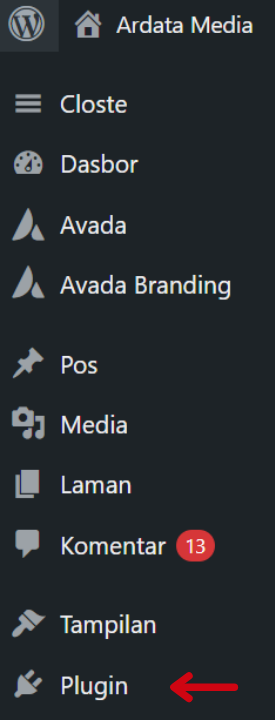
- For those of you who have never used and installed the W3 Total Cache plugin on WordPress. First, enter your website 's WordPress Dashboard section , and then select the Plugin menu.
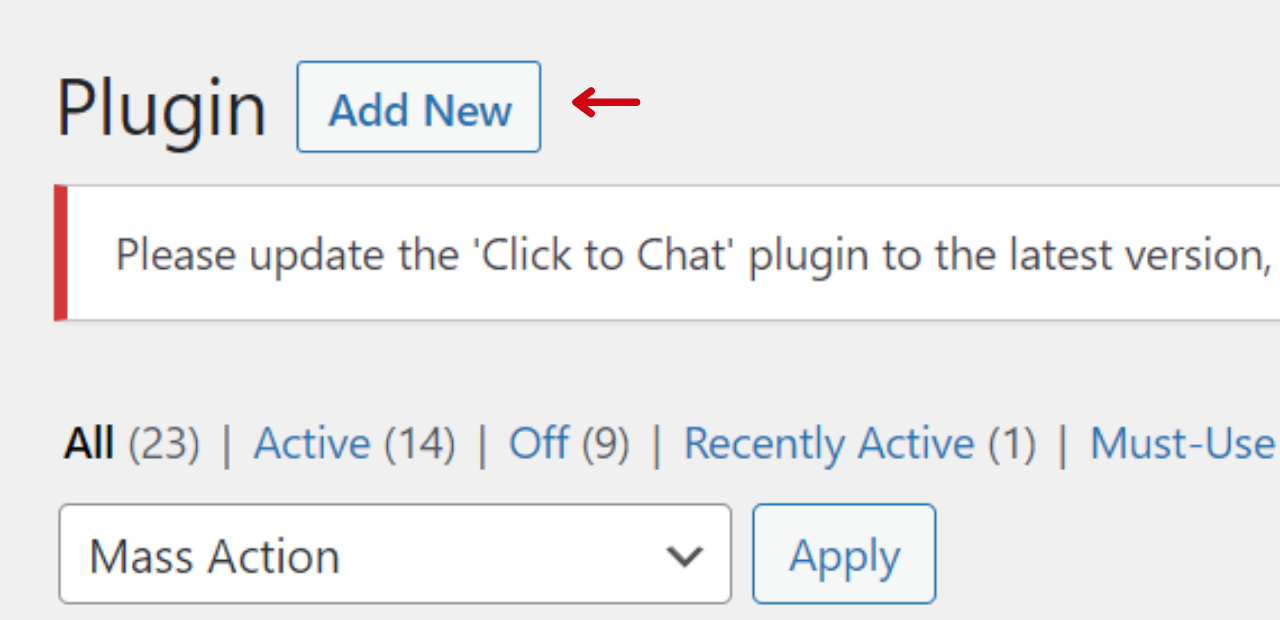
- On the plugin menu, you can add a new plugin by clicking Add New at the top left of the page.
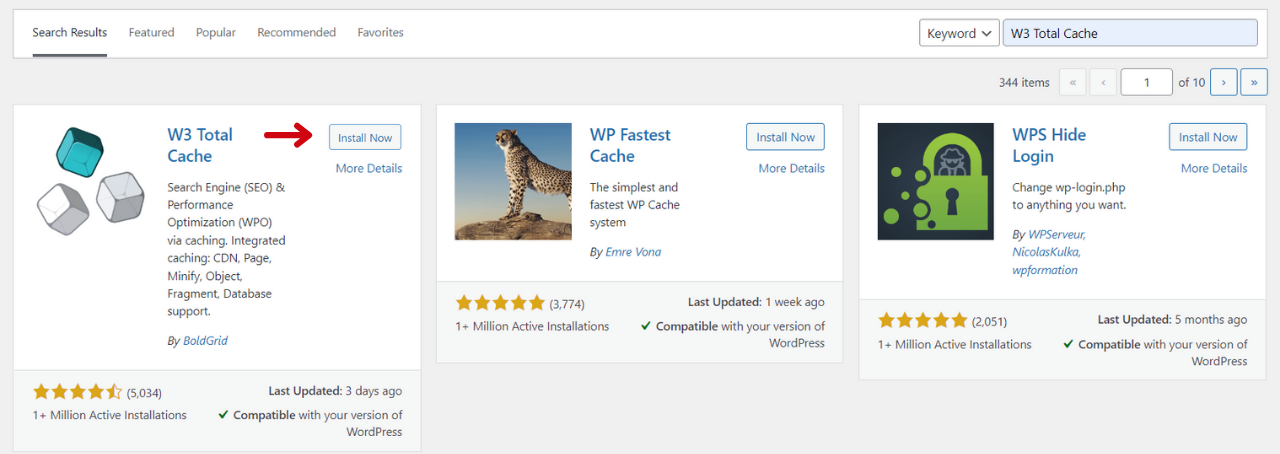
- After that, type the name W3 Total Cache in the plugin search field.
- After successfully searching for and finding the W3 Total Cache plugin, next is to click the Install Now button.
- After pressing the install button on the W3 Total Cache Plugin, the plugin cannot be used immediately or is not activated yet, therefore you need to activate it first by clicking the Activate button.
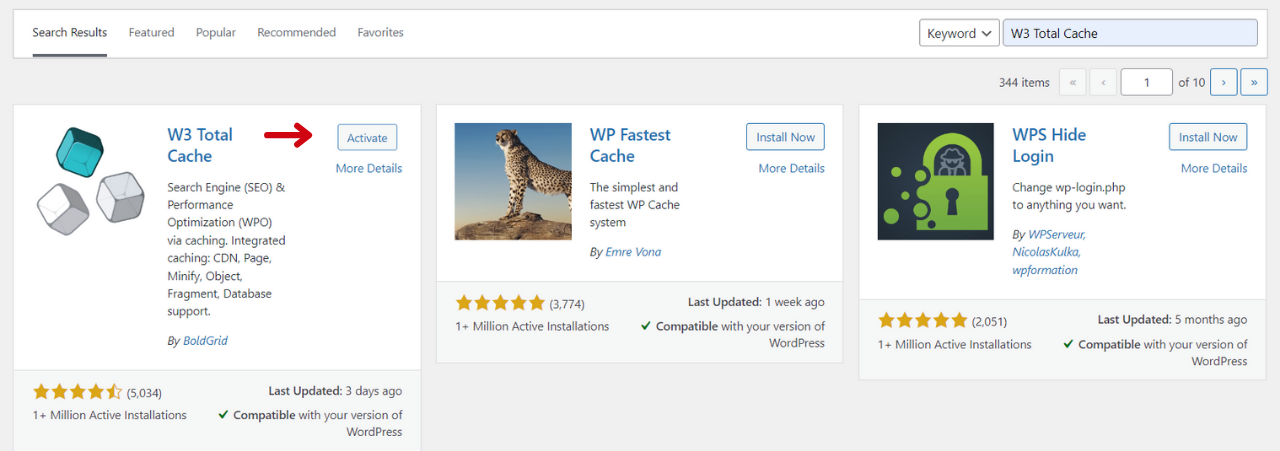
- Then wait until the W3 Total Cache plugin appears with the words Plugin Active.
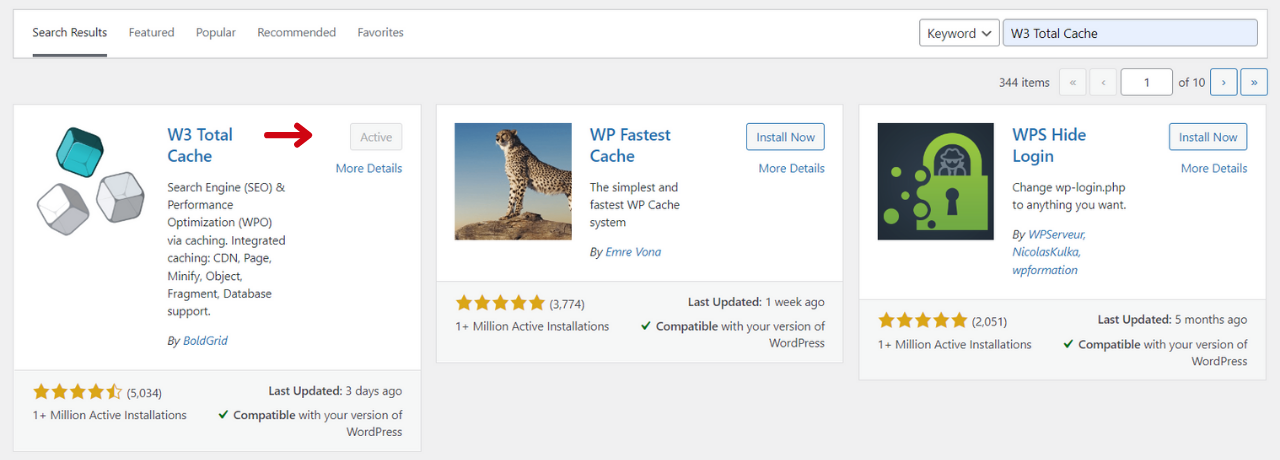
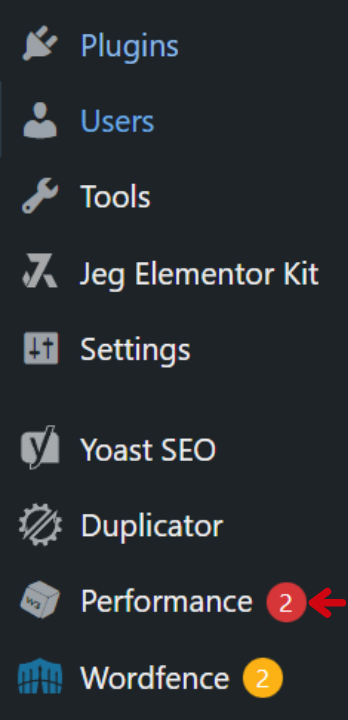
- After the W3 Total Cache plugin is installed and active, the next step you have to take is to go to the new WordPress dashboard menu, namely the Performance Menu.
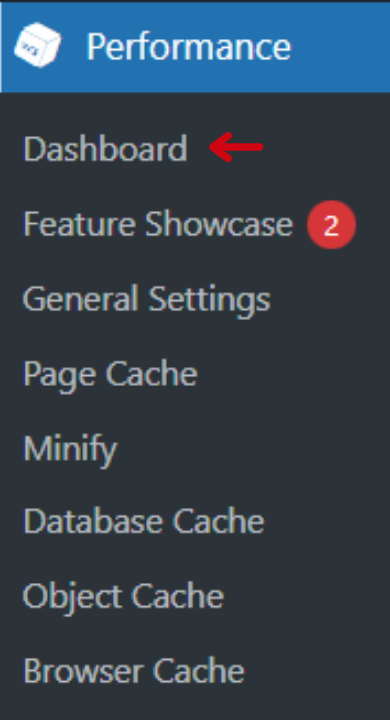
- After entering the Performance menu, the next step is to select the Dashboard menu.
- After entering the dashboard menu, the next step is to click the Empty All Caches button located at the top of the page.
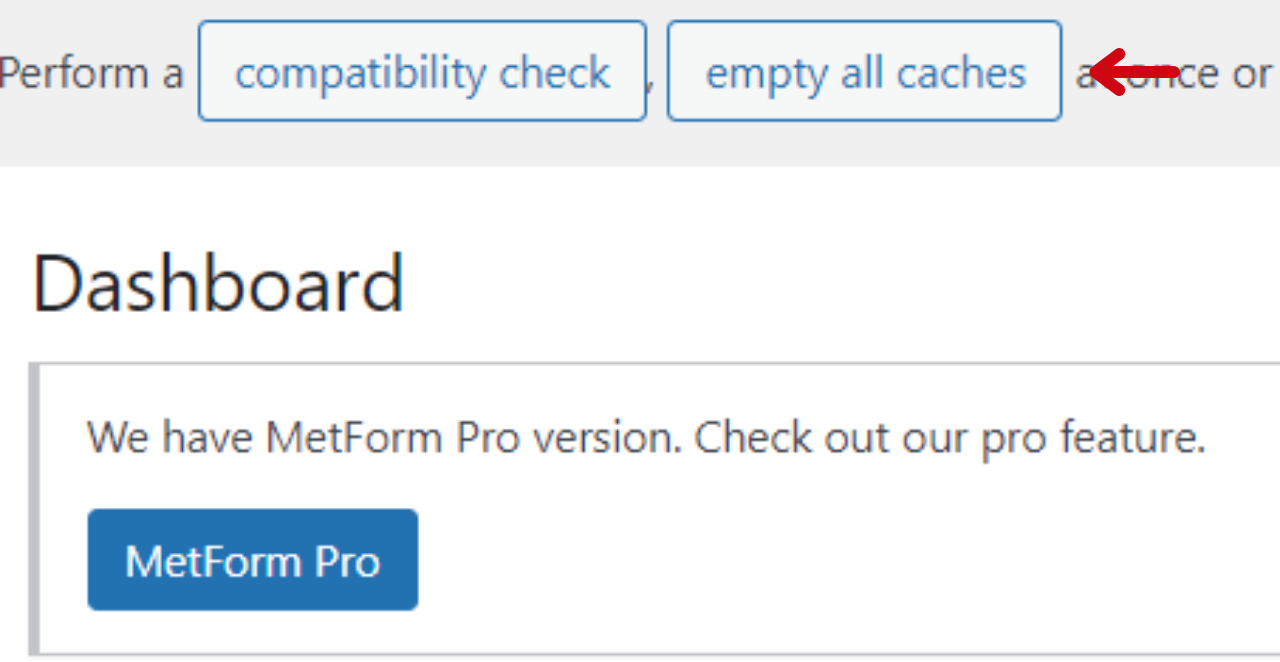
- After pressing this button, the cache on your WordPress website has been successfully removed.
Well, now you can easily clear the cache of your WordPress website right? With experience using this plugin, the website you have can be customized and you can also compare which plugin is more suitable for use on your website.
Once you have cleared the cache with the W3 Total Cache plugin, the next recommended step is. You are advised to re-check the speed of your website with free tools provided on the Internet, such as the Google Pagespeed Insight tool.